
From download to setup, done in 3 minutes
RoamSwitch is a menu bar app designed to need "zero configuration". After a few clicks on first launch to grant permissions, it protects your Mac's network boundary fully automatically. Following the actual screens, this page explains everything from installation to initial setup.
Download and open the DMG
Download the latest RoamSwitch.dmg from the homepage and double-click it to open. Drag the "RoamSwitch" icon in the window to the "Applications" folder.
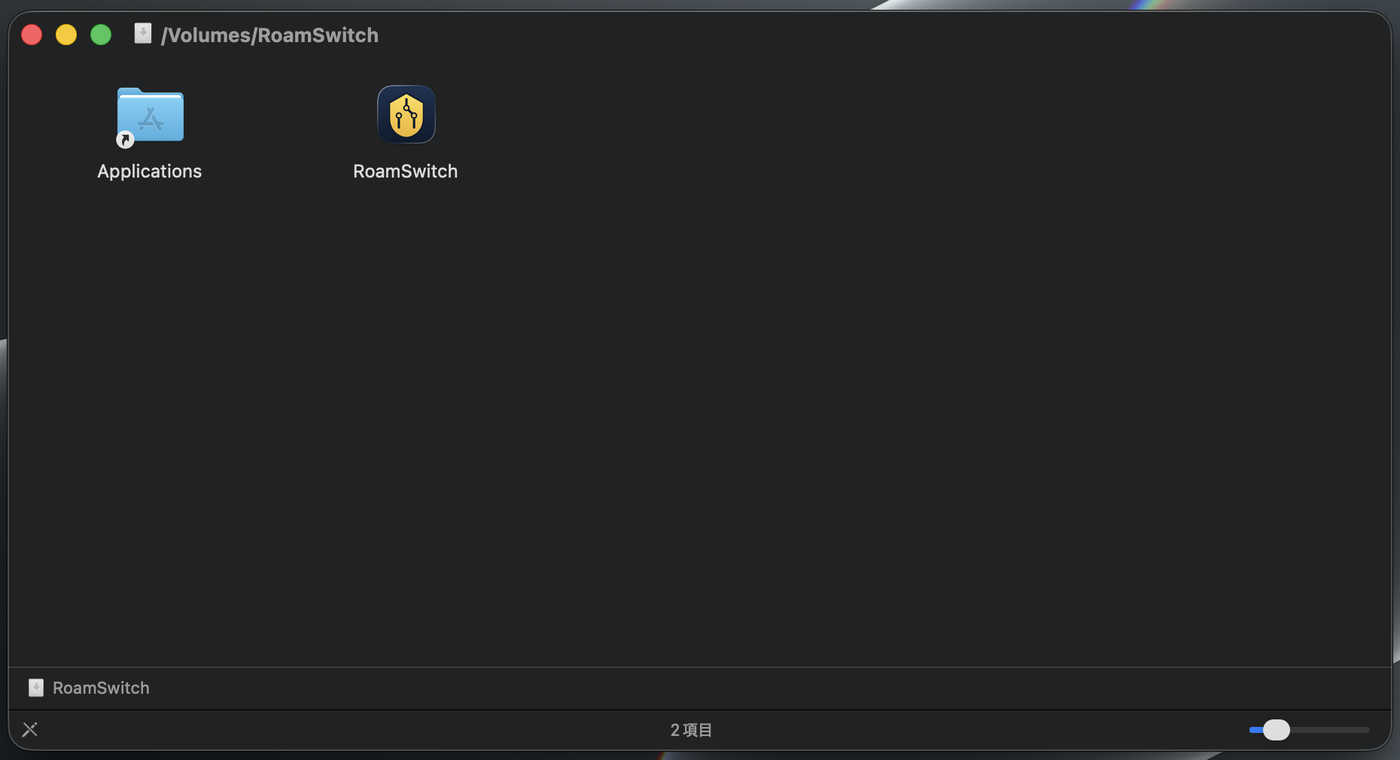
※ This screenshot is from a Japanese-language Mac. Your own dialog will appear in your system language.
Launch it from the Applications folder
When the copy finishes, open RoamSwitch in the "Applications" folder. RoamSwitch is signed with an official Apple Developer ID certificate and notarized, so the "developer cannot be verified" warning does not appear. Only the first time, you will be asked to confirm that the file was downloaded from the internet; choose "Open".
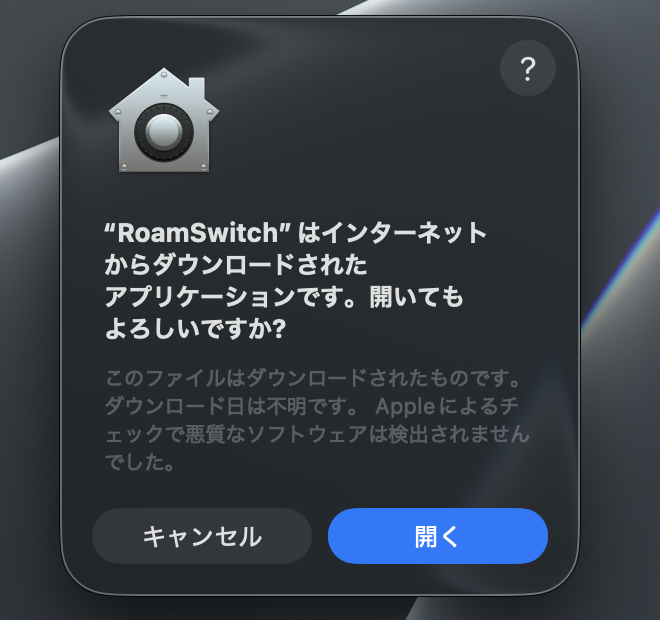
※ This screenshot is from a Japanese-language Mac. Your own dialog will appear in your system language.
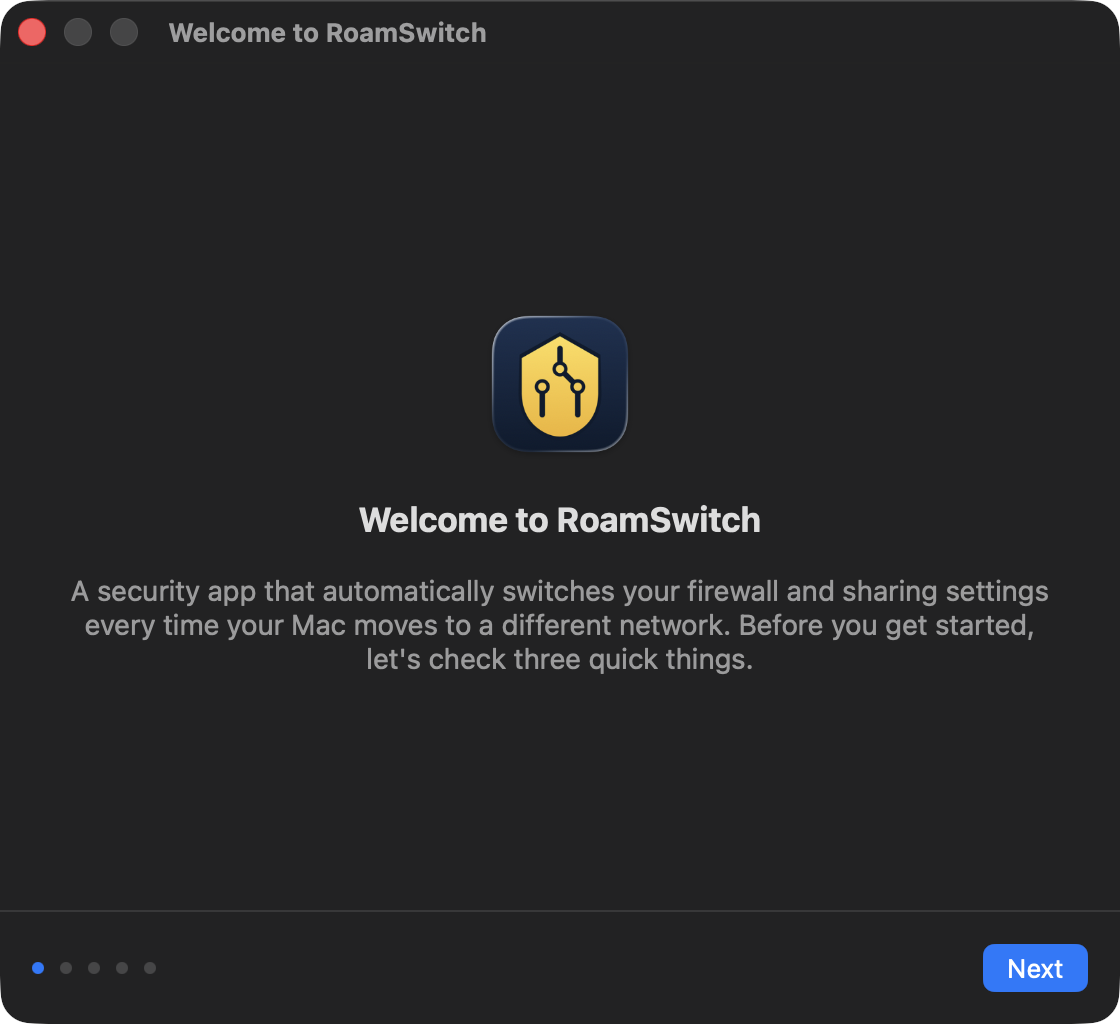
The welcome screen opens automatically
On first launch, the setup screen opens automatically. Follow the screen and press "Next" to proceed with the settings.
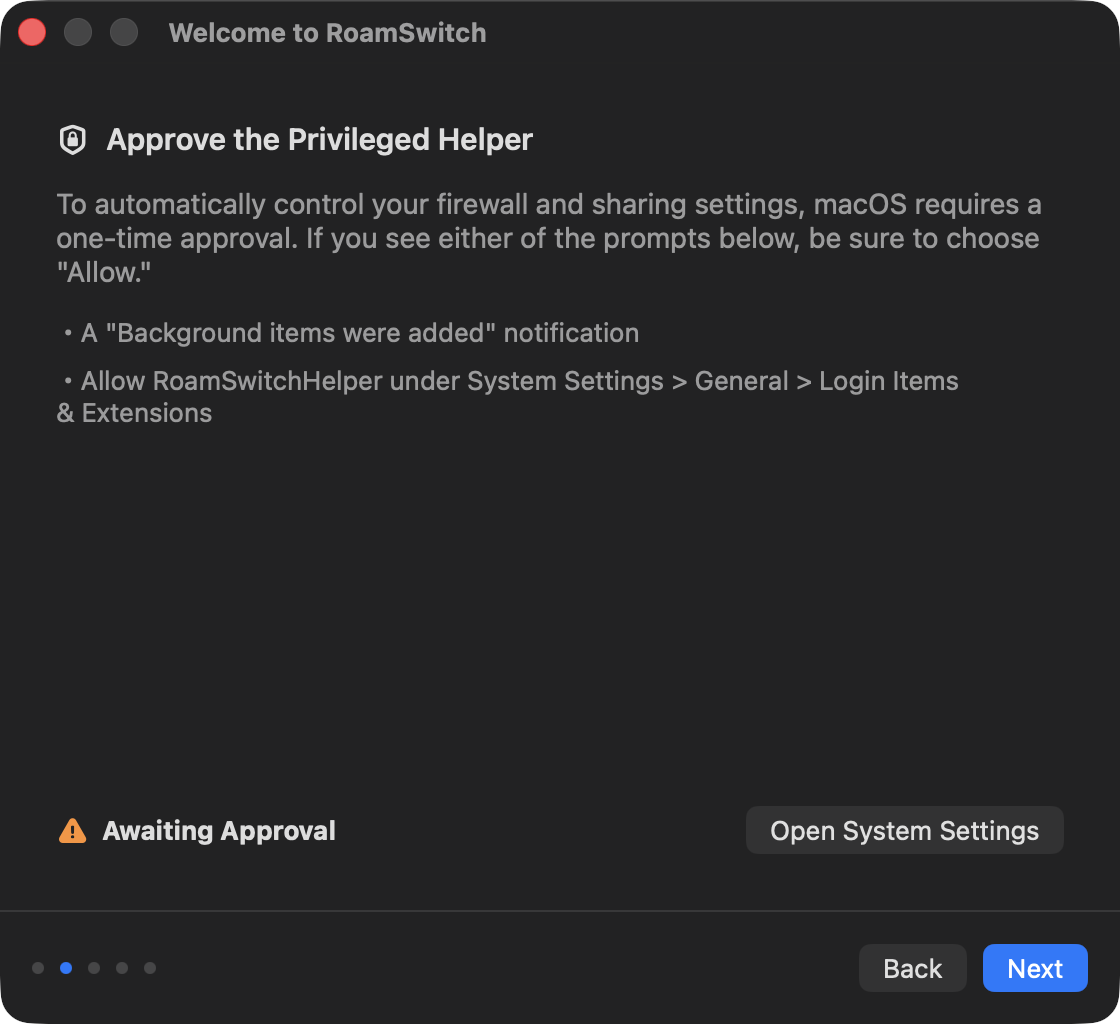
Approve the privileged helper (first time only)
To control the firewall and sharing settings automatically without password prompts, a one-time approval is needed at the start. The approval uses the standard macOS "Background Items" approval (Apple's official SMAppService framework). A notification "Background items added" appears. You can also open "System Settings" directly with the button below.
Open System Settings ▸ General ▸ Login Items & Extensions, and turn on the toggle for RoamSwitch.
▲ A ~15-second screen recording of the complete approval flow.
Before

After

Switch back to RoamSwitch, and the approved status is reflected automatically.
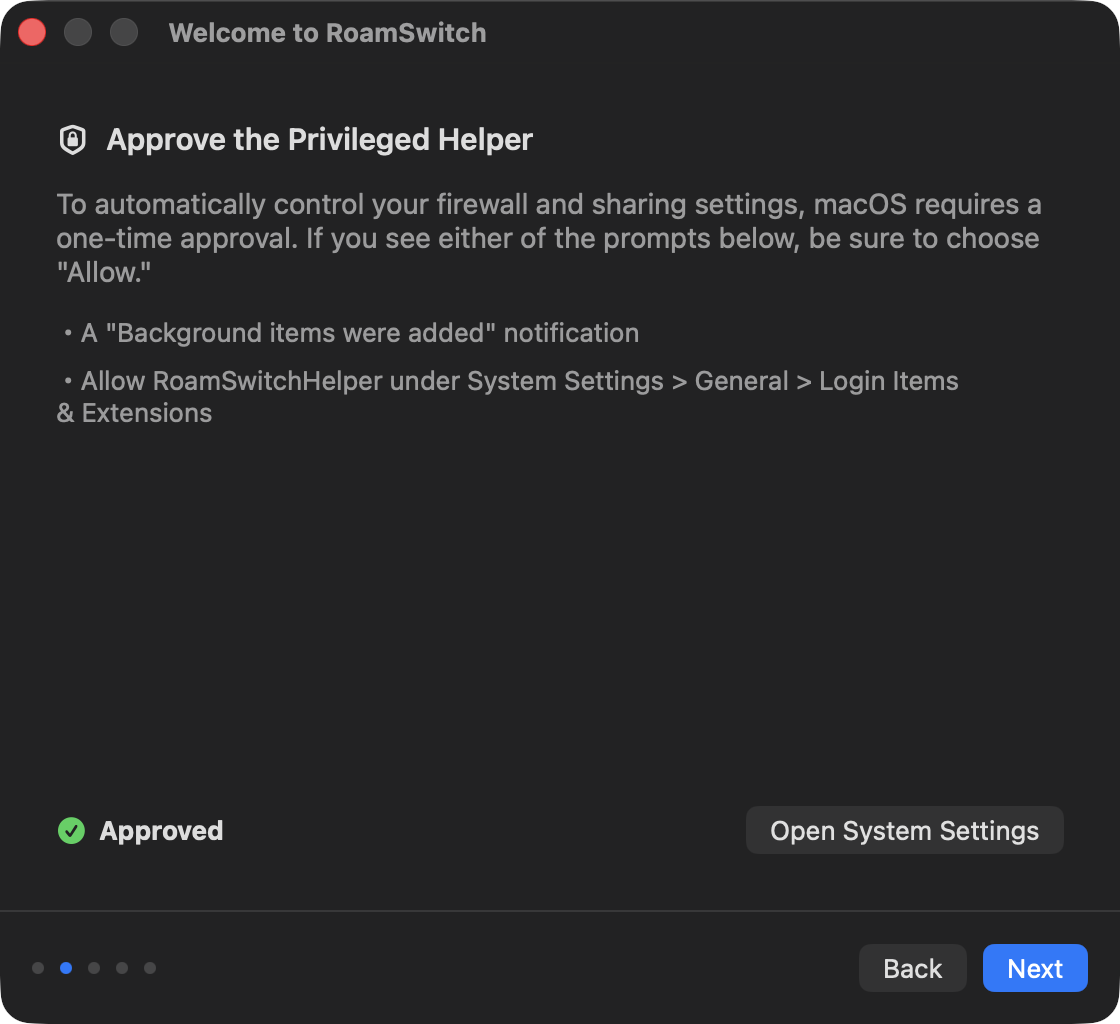
socketfilterfw) and sharing daemons and for automatic blocking.Register this location as "trusted" (optional)
If you register networks you know are safe, such as at home or the office, file sharing and similar features stay enabled automatically there. In unregistered places (cafés, public Wi-Fi, etc.), protection is strengthened automatically, so this step can also be done later.
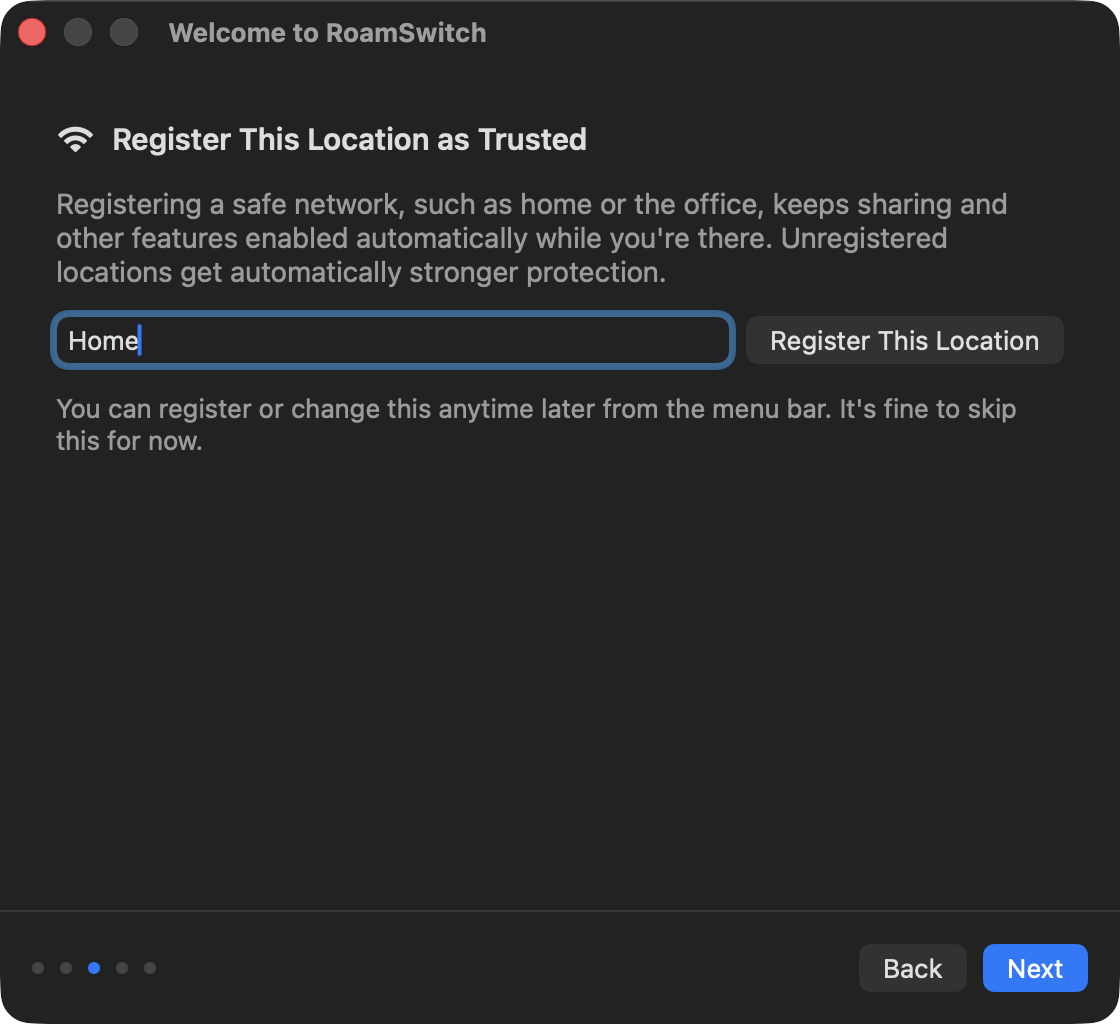
Enable launch at login
RoamSwitch is an app that constantly monitors the network in the background. So that you do not have to launch it by hand after every restart, we recommend enabling launch at login. You can change this setting later at any time from the menu bar.
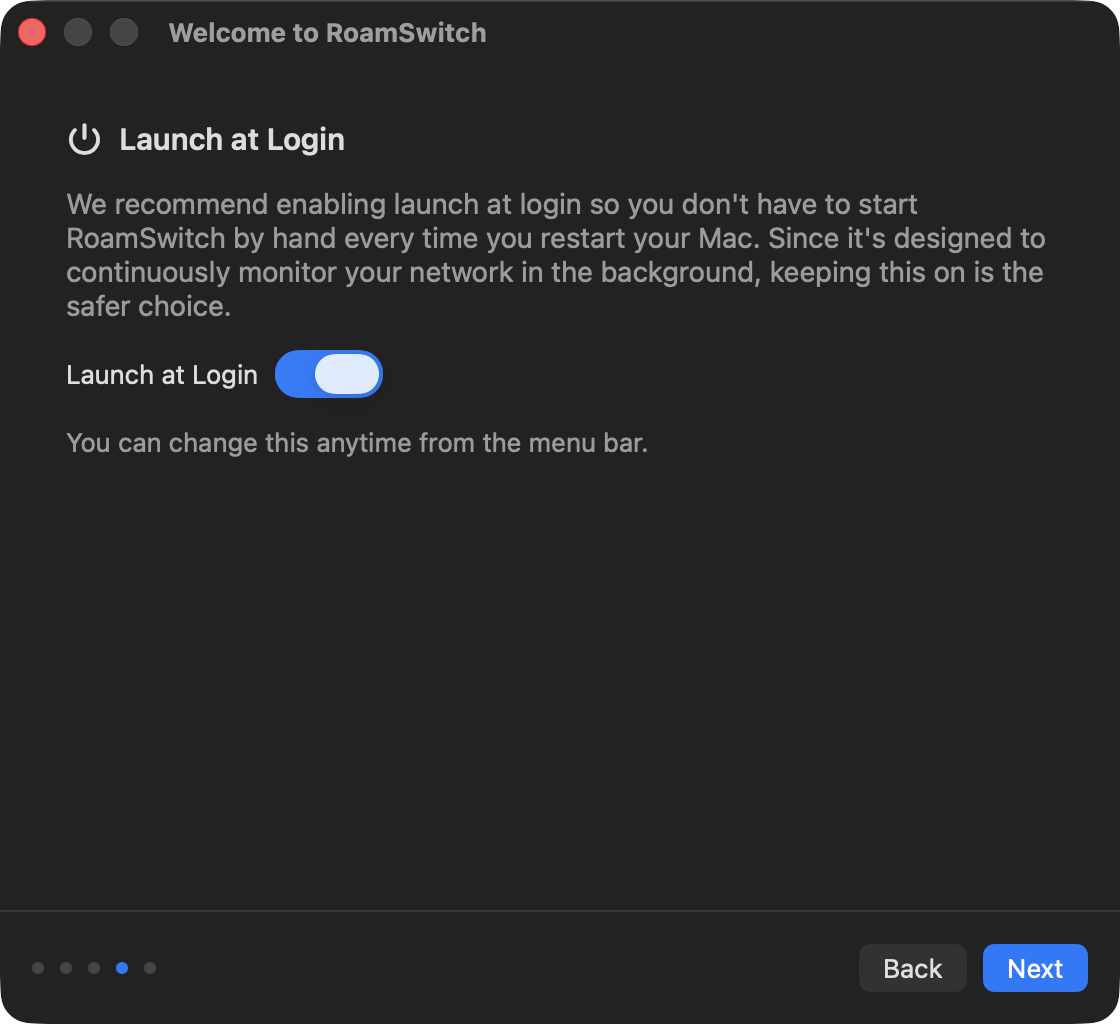
Setup complete
Finally, a guide to what the Pro lifetime edition offers is shown. Even in the free edition, all automatic defenses (packet blocking on unregistered networks, port protection, sharing shutdown) work. Press "Get Started" to complete the setup.
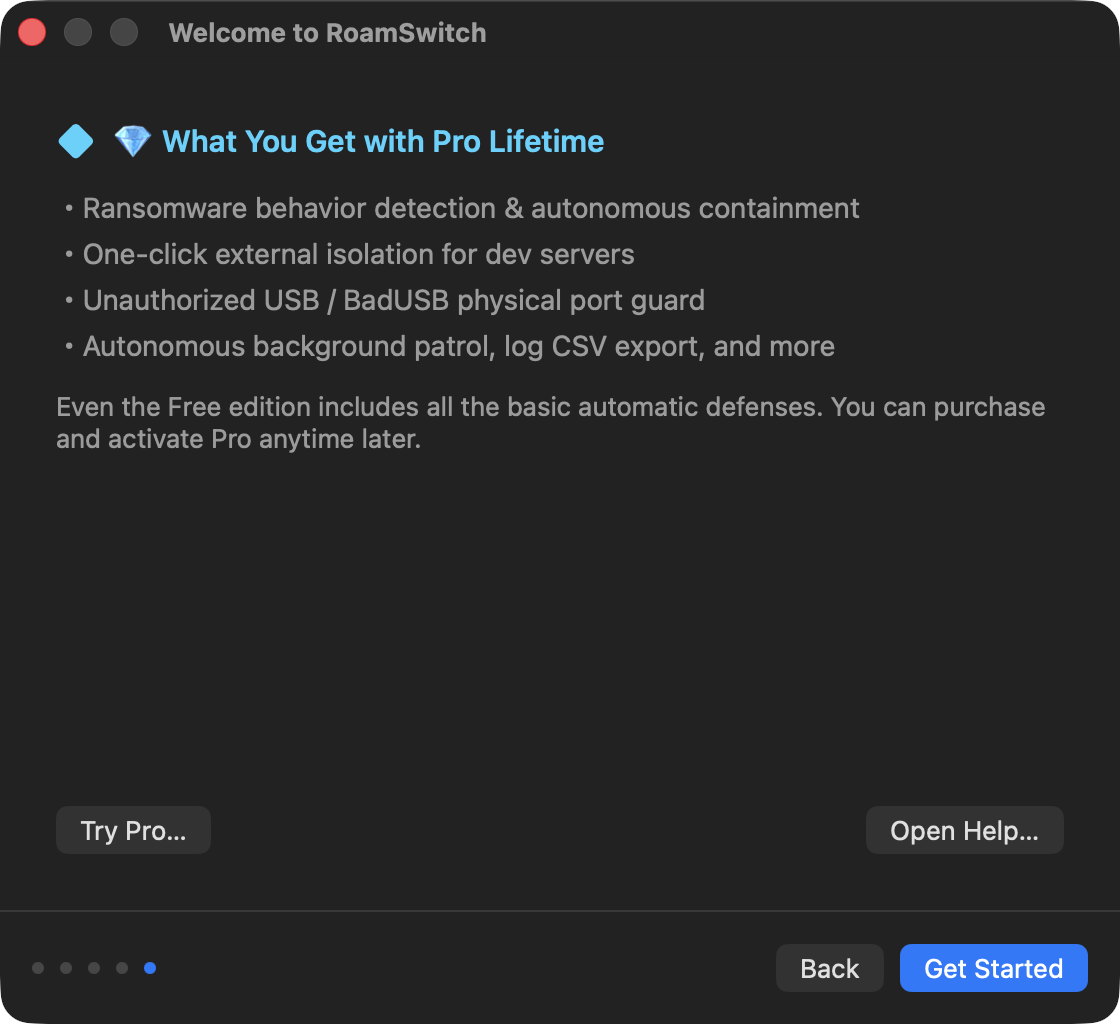
From here, there's nothing else to do
RoamSwitch stays in the menu bar and acts automatically every time your Mac connects to a network or you move. You operate it by hand only when registering a new network or temporarily changing the protection level.
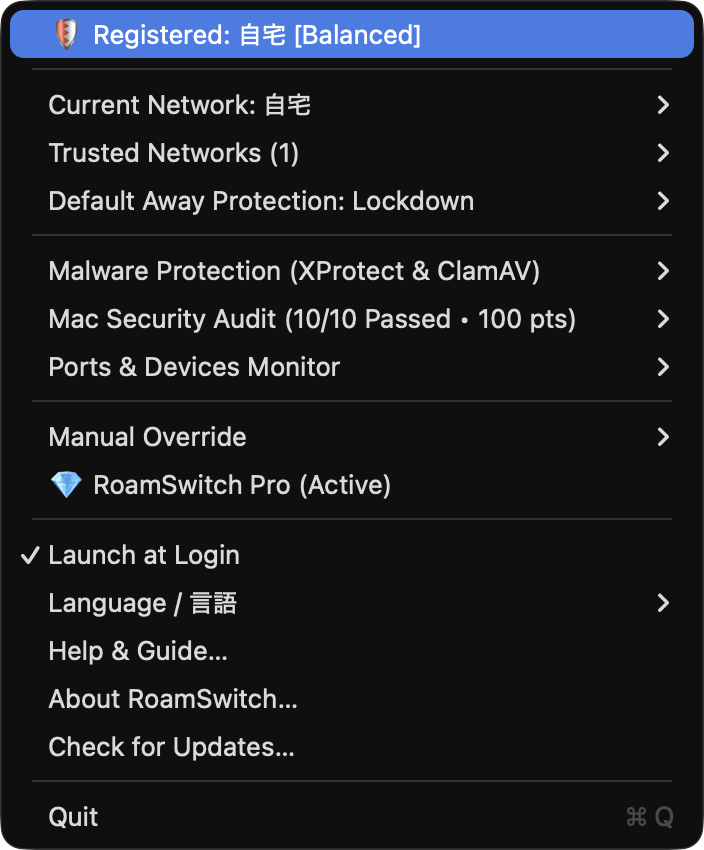
Click the menu bar icon anytime to check your current protection status and comprehensive security score.
📥 Web & Email Protection
Automatically detects files downloaded from Safari, Mail, Slack, Discord and more, and instantly scans and quarantines them with ClamAV.
🌐 DNS Threat Protection
On public Wi-Fi, automatically switches to secure DNS such as Quad9 / Cloudflare, blocking access to malware C2 and phishing sites before they load.
🔗 Link Safety Check
Safely expand suspicious email-attachment URLs and shortened links on your device before opening them in a browser, with Unicode homograph spoofing detection.
Questions we often get before installing
Q. Is "Accessibility" permission required?
A. No, it is not required. The only thing needed is approval of the privileged helper in "System Settings" > "General" > "Login Items & Extensions" (step 4 above).
Q. Gatekeeper shows an "unidentified developer" warning and won't let me open it
A. RoamSwitch is notarized, so this warning normally does not appear. If it does, the file may have come from somewhere other than the official site (lafine.net). Download it again from the official site.
Q. Do I need to do anything each time after setup?
A. No. Once the initial setup is done, the firewall and sharing settings switch automatically whenever the network changes. Automatic blocking of unauthorized USB storage works regardless of the network, always detecting USB insertion and removal. You operate it by hand only when registering a new safe location.
Q. How do I uninstall it?
A. Quit the app with "Quit" in the menu bar, then move RoamSwitch in the "Applications" folder to the Trash. You can revoke the privileged helper approval separately in "System Settings" > "General" > "Login Items & Extensions".